Use ChatGPT with spreadsheets
Make ChatGPT your spreadsheet assistant. Ask questions instead of writing formulas to explore and understand your data—and get help building templates, cleaning data, visualizing trends, and working smarter in Excel or Google Sheets.
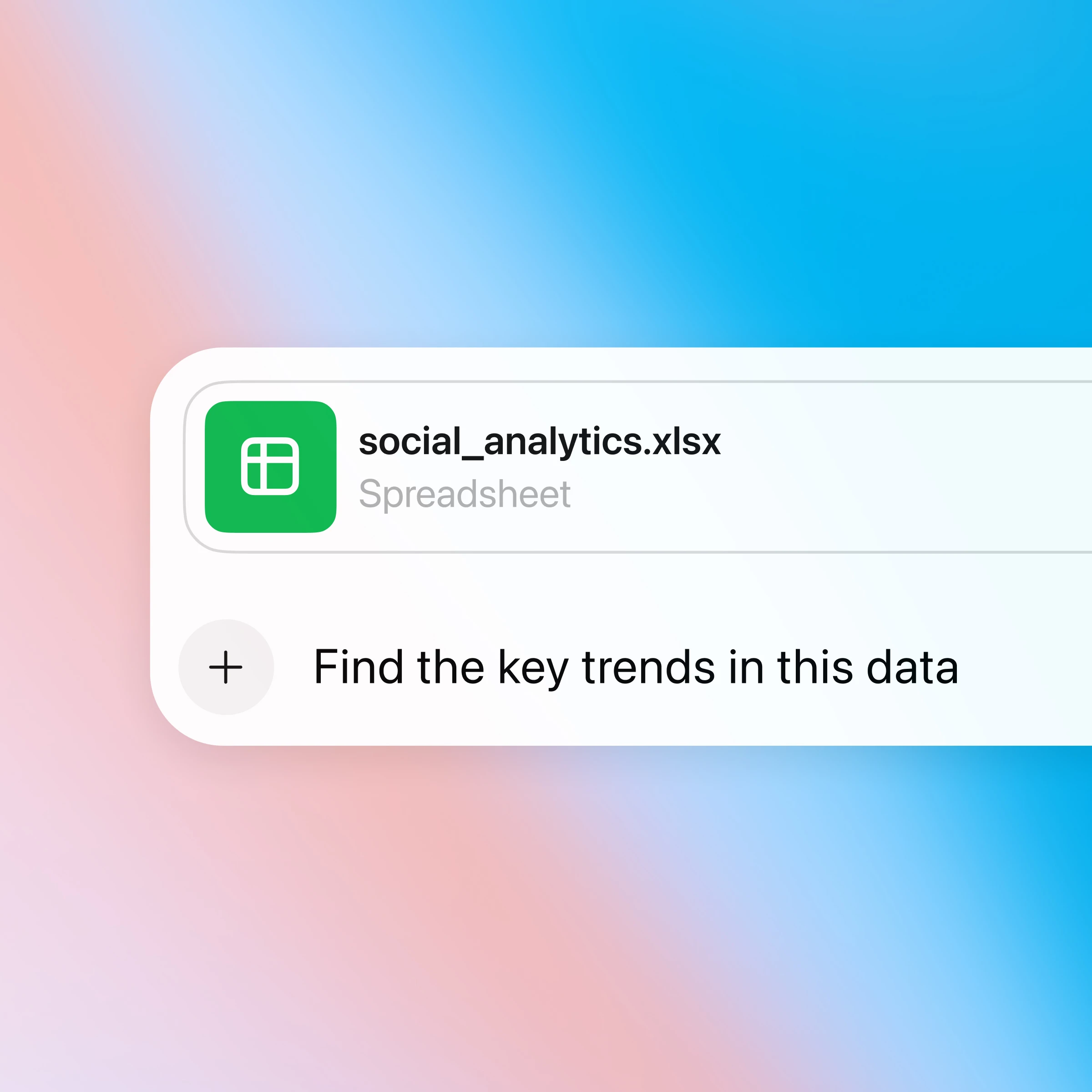
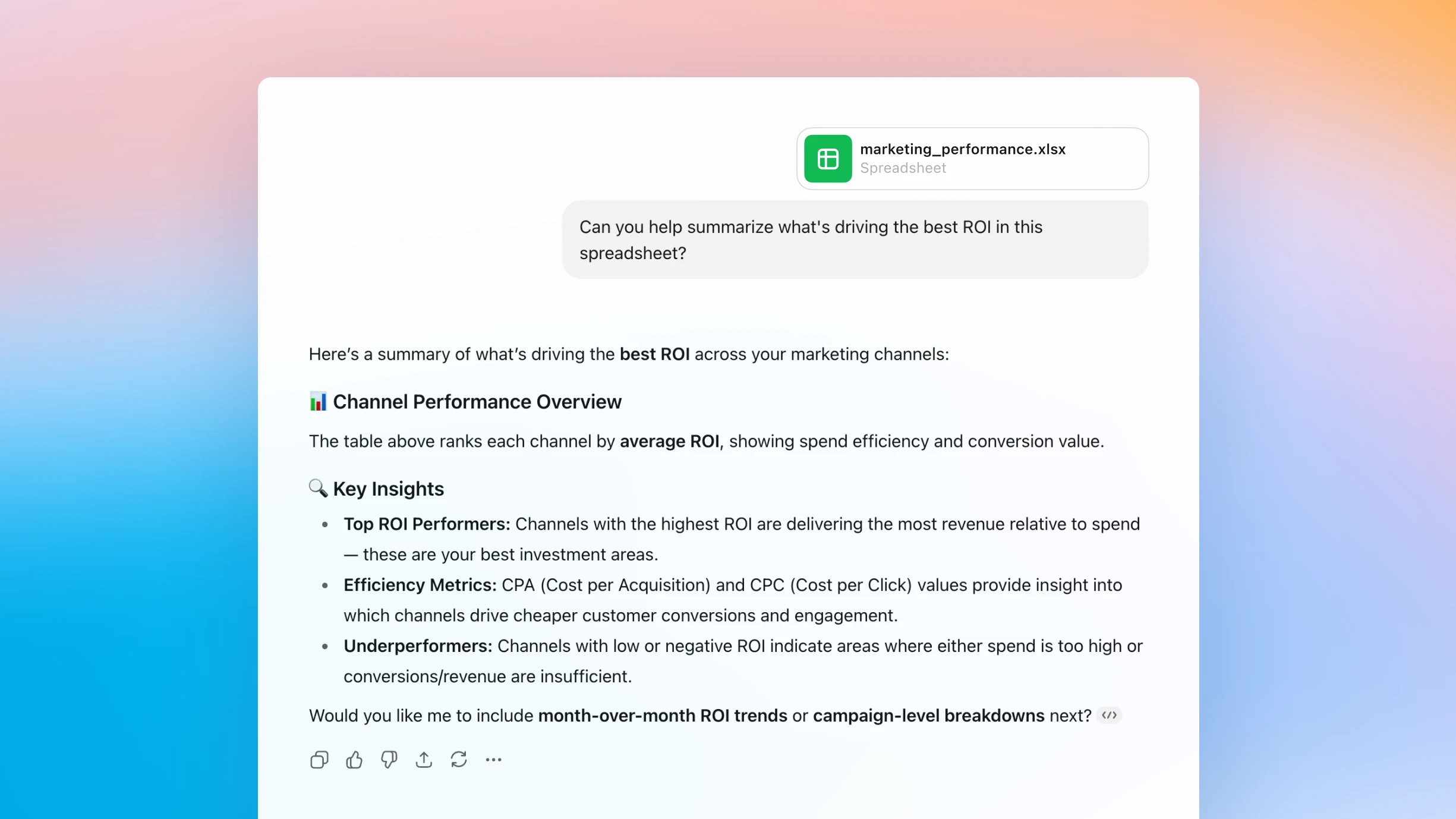
Chat with any spreadsheet and get answers, instantly
Turn questions into insights
Upload your data and start asking questions—ChatGPT helps uncover trends, spot errors, and summarize what matters in seconds.
Write and fix formulas
ChatGPT helps you learn and fix formulas as you go, turning confusing syntax into simple, clear instructions.
Generate useful templates
Simply describe what you need—like a budget tracker—and ChatGPT will help generate the layout, format, and formulas.
How it works
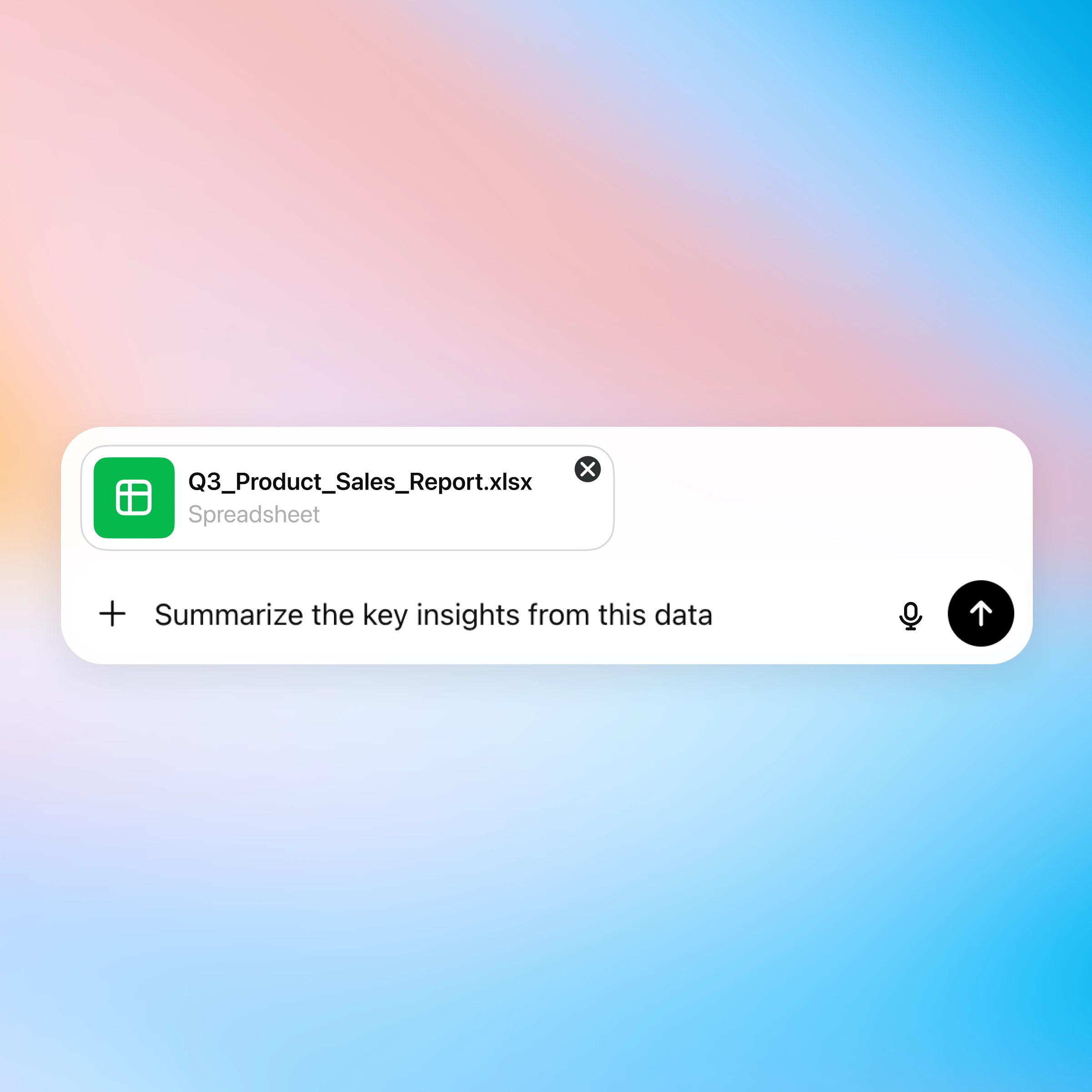
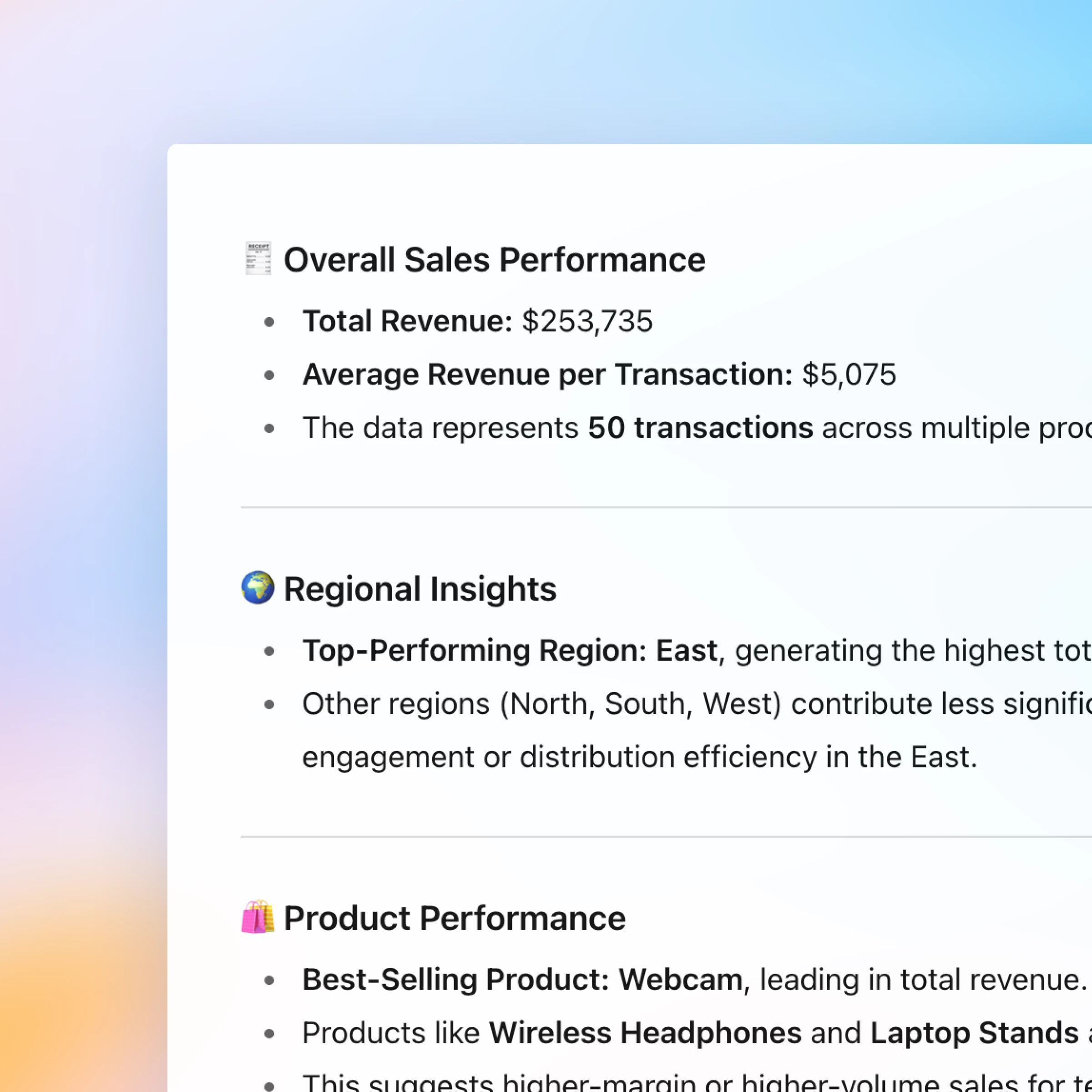
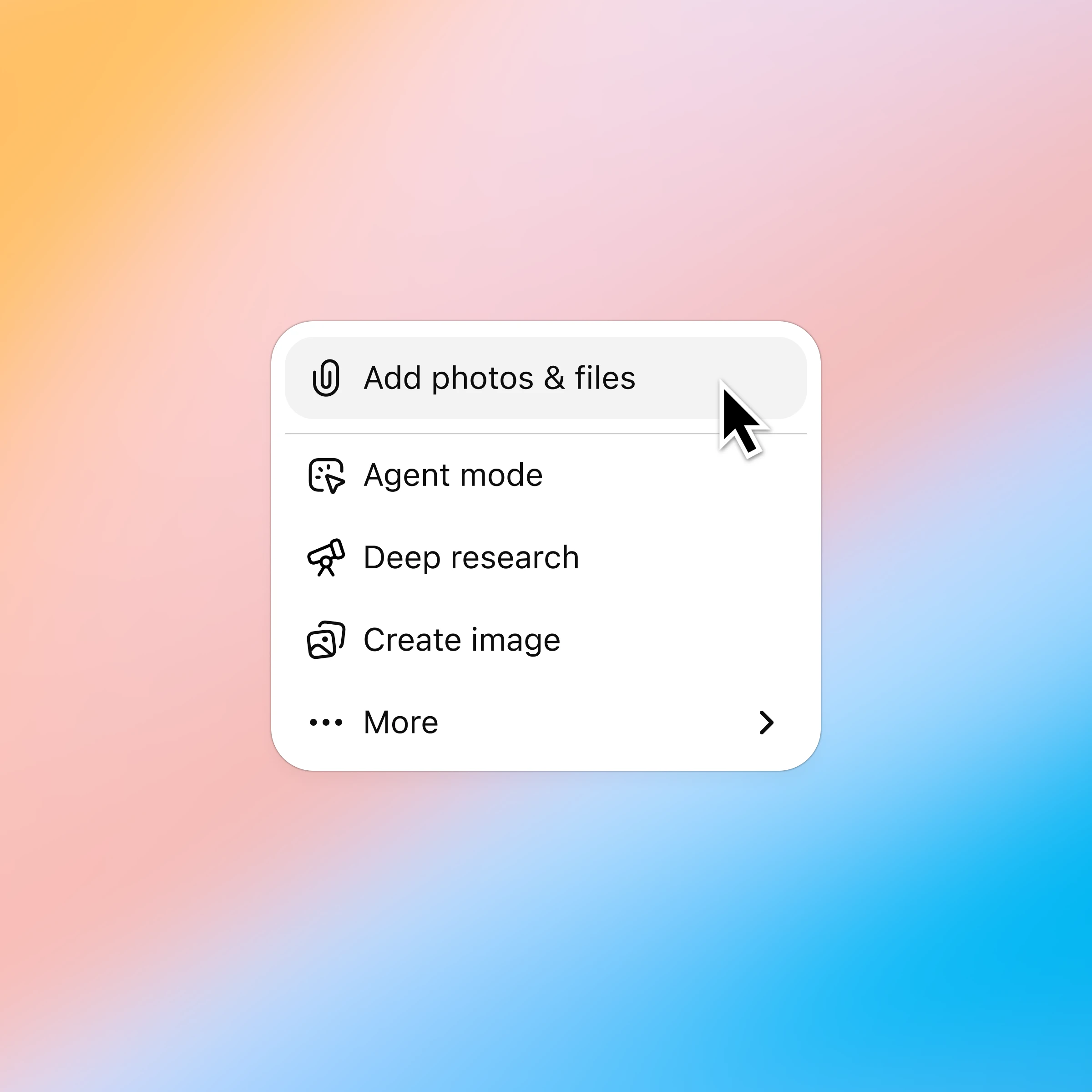
Click the ‘+’ and select ‘Add photos & files’ and choose the spreadsheet you want to discuss. Plus and Pro customers can connect to Google Drive and Microsoft Teams to pull in existing files. Learn more.
More ways to chat with spreadsheets
More ways to use ChatGPT
- Chat with PDFs
Upload your PDFs to ChatGPT and get help analyzing and summarizing big documents, so you can get the information you need quickly.
- Try ChatGPT for Excel Add-in
Ask ChatGPT to build full spreadsheets, get insights across tabs and formulas, and update workbooks in real time so projects move forward faster.
- Chat with presentations
Turn presentations into a two-way dialogue, getting fast answers, clearer messaging, and better visuals just by uploading your deck and asking.